
Recording supplier bills
Enter a supplier's bill, track what you owe and pay it on time.
Overview
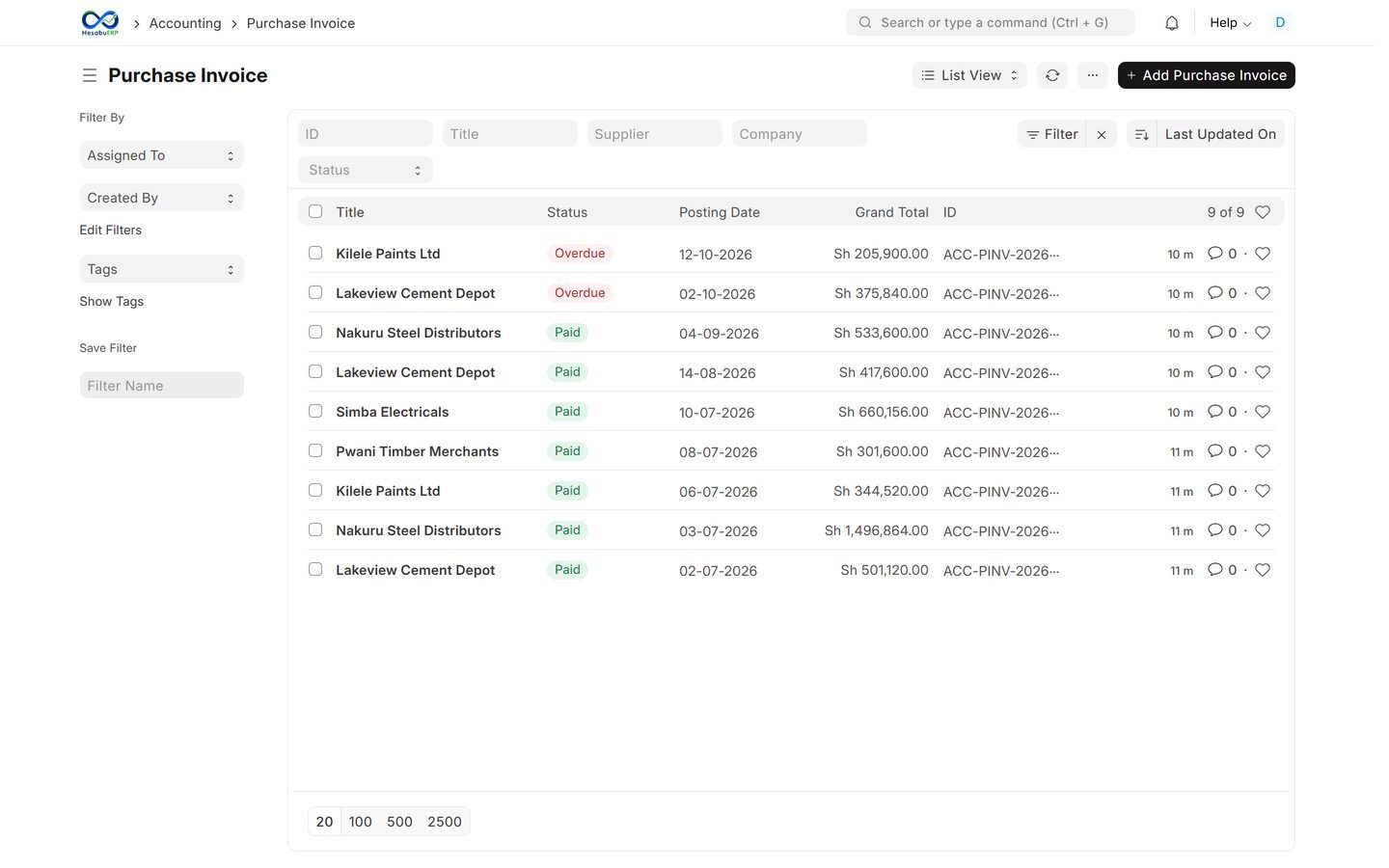
A Purchase Invoice records a bill from a supplier. When you submit it, the amount is added to your Accounts Payable, and the cost is posted to stock or an expense account.
Prerequisites
A Supplier record, and Items or expense accounts. See Suppliers.
Steps
- Search for New Purchase Invoice.
- Choose the Supplier.
- Enter the supplier's Supplier Invoice No and Supplier Invoice Date from their invoice, so you can match them later.
- Set the Due Date.
- In the Items table, add each item with its quantity and rate. For a service or expense with no item, you can add a row and choose an Expense Account.
- If the invoice should update your stock, tick Update Stock and choose the warehouse. Skip it if a Purchase Receipt already recorded the goods.
- Add taxes if applicable.
- Click Save, then Submit.
- To pay, click Create, then Payment. See Recording customer and supplier payments.
Practical example
Lakeview Cement Depot bills KES 375,840 for cement, due in 30 days. The accountant enters their bill number, submits the invoice, and sets a reminder using the Overdue filter. In 30 days, the invoice status changes to Overdue if unpaid, which shows in the list.
Important notes
- Entering the supplier's Supplier Invoice No helps catch duplicates. The system warns you if the same number already exists for that supplier.
- Use the Accounts Payable report to see everything you owe and how late each bill is.
Common mistakes
- Entering the same bill twice.
- Ticking Update Stock after you already received the goods on a Purchase Receipt.
Next steps
Read Bank reconciliation.