
Creating a sales invoice
Raise an invoice, add items and taxes, submit it, and email or print it.
Overview
A Sales Invoice is the bill you send to a customer. When you submit it, the amount is added to what the customer owes (Accounts Receivable) and recorded as income.
Prerequisites
- A Customer record. See Customers.
- Items created, if you bill for goods. See Creating items.
- The Accounts User or Sales User role.
Steps
- Search for New Sales Invoice.
- Choose the Customer. Their tax ID and address fill in.
- Check the Posting Date and Payment Due Date. The due date follows the customer's payment terms.
- In the Items table, click Add Row and choose the Item. The description and rate fill in. Enter the Quantity.
- If this invoice should reduce stock itself, tick Update Stock and choose the Source Warehouse. Leave it unticked if a Delivery Note already moved the stock.
- Under Taxes and Charges, choose a Sales Taxes and Charges Template if the sale is taxable. See Sales taxes and VAT.
- Check the Grand Total at the bottom.
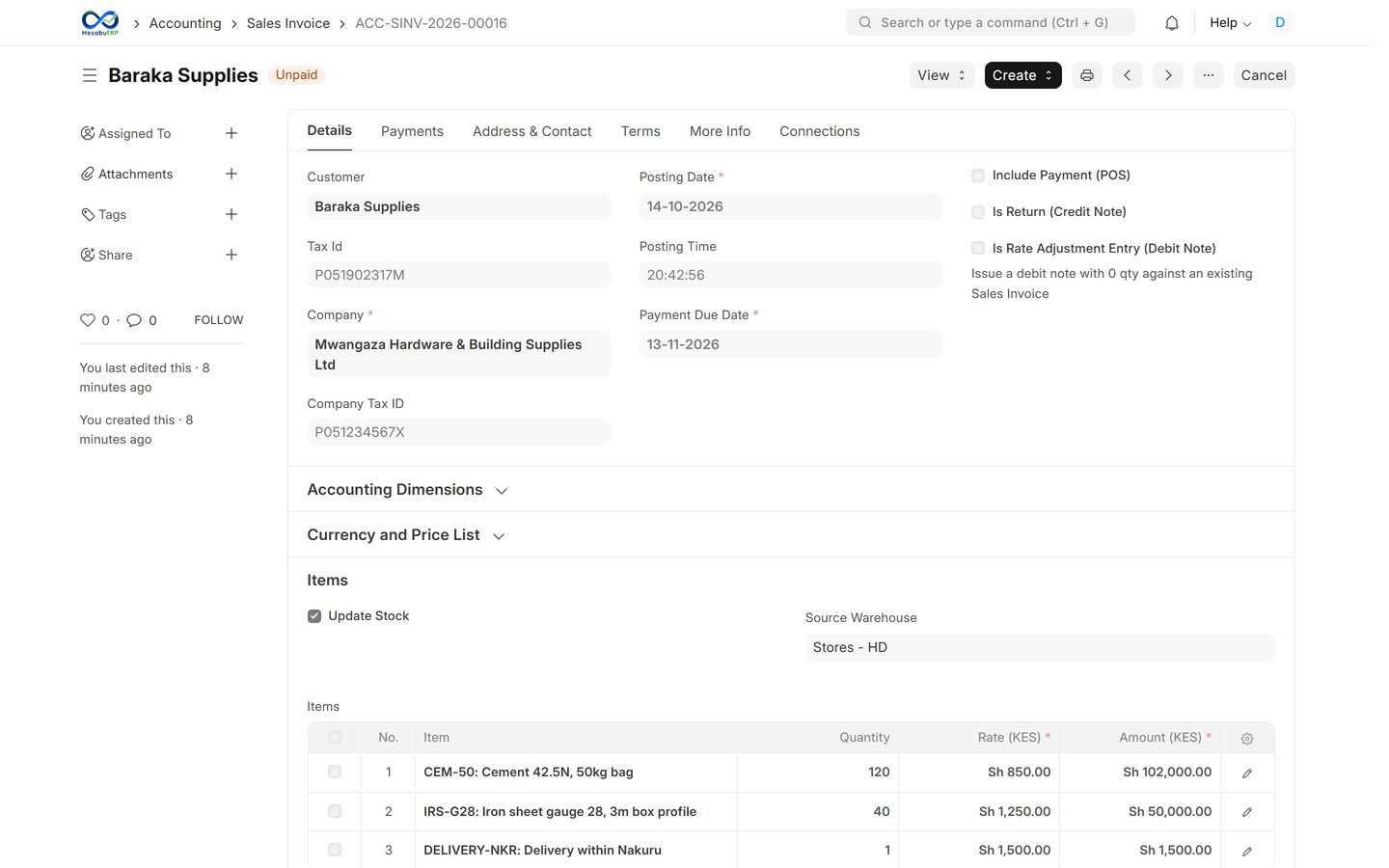
- Click Save, then Submit. The invoice gets its number, for example
ACC-SINV-2026-00016.
Send it to the customer
- On the submitted invoice, click the printer icon to print, or the ... menu, then Email.
- Choose your Print Format if you have a branded one. See Print formats.
- Click Send. The PDF is attached.
Practical example
Baraka Supplies orders 120 bags of cement at KES 850, 40 iron sheets at KES 1,250 and a delivery fee of KES 1,500. The invoice totals KES 153,500, is due in 30 days, and shows as Unpaid until the payment is recorded.
Important notes
- A submitted invoice cannot be edited. To fix a mistake, cancel and amend it, or issue a credit note. See Understanding document status.
- The Is Return (Credit Note) option on an invoice is for returns. Do not tick it for a normal sale.
- If your business must issue KRA eTIMS invoices, ask support to set up the eTIMS connection before you go live. See Electronic tax invoices and eTIMS.
Common mistakes
- Ticking Update Stock and also raising a Delivery Note. Stock then reduces twice.
- Not setting the right tax template, so VAT is missing.
Troubleshooting
See Invoice submission errors.