
Running and saving reports
Open a report, change its filters, save your own version and export it.
Overview
Reports answer business questions: how much profit did we make, who owes us, what is in stock. Each module has its own reports, listed on its workspace under Reports & Masters.
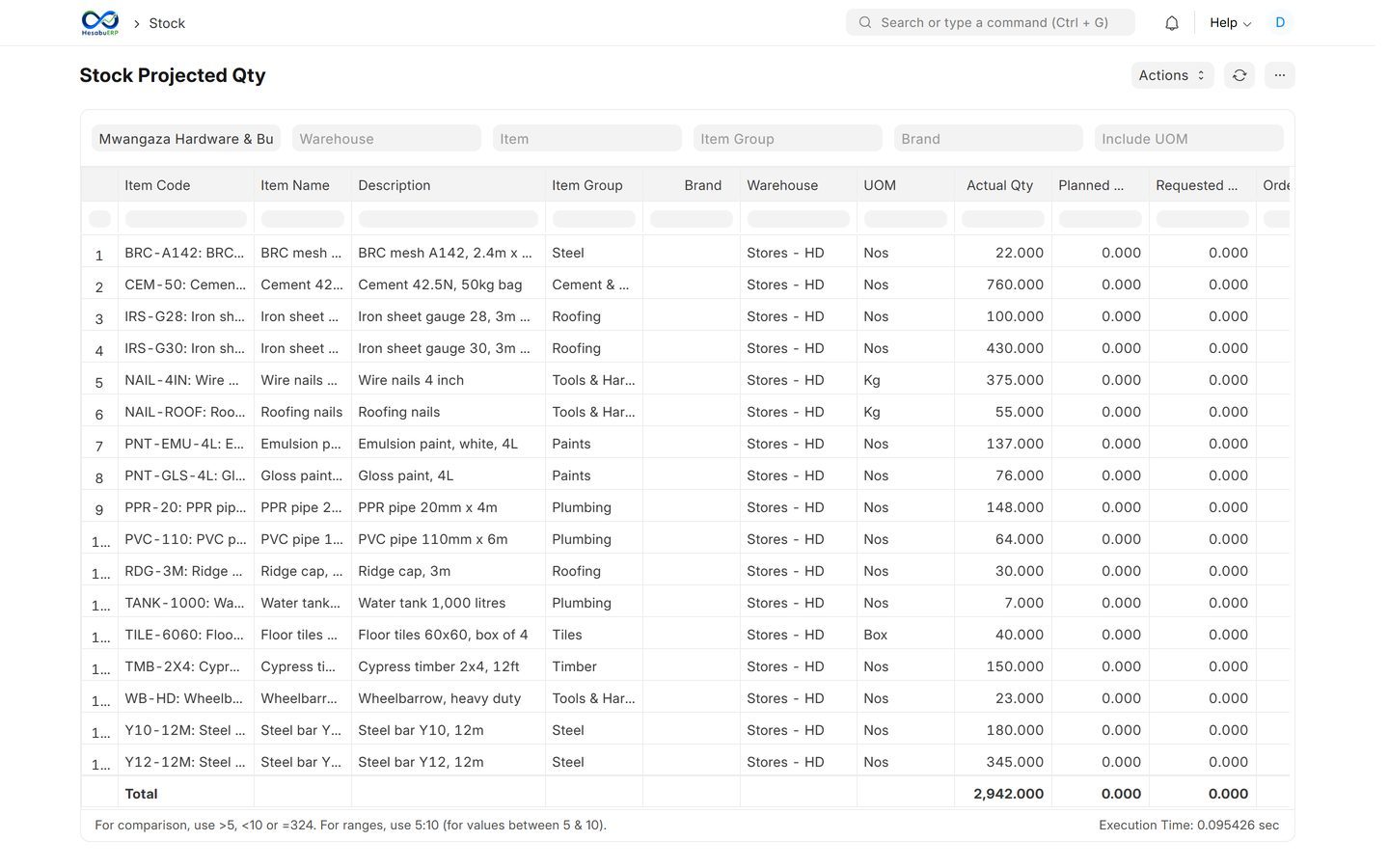
Steps
- Open a module workspace, such as Stock, and find the report under Reports. Or type the report name in the search bar.
- Set the filters at the top, such as Company, Warehouse or date range. The report updates.
- Use the column headers to sort. Use the Menu at the top right for more options.
- To keep your filters, choose Save in the menu and name the report. It appears in your list of reports.
- To share it, use Menu, then Export (Excel or CSV) or Print (PDF).
Practical example
The storekeeper opens Stock Projected Qty, filters by the Stores warehouse and the Steel item group, and exports to Excel to send to the supplier as an order list.
Important notes
- Some reports need mandatory filters, such as the company or a date. If a report looks empty, check these first.
- Reports show posted (submitted) documents. Drafts are not included.
- Totals in the last row add the numeric columns.
Common mistakes
- Reading a report with the wrong company or fiscal year selected.
- Expecting a draft invoice to appear in a financial report.
Next steps
Read Attachments and files.