
Understanding the Hesabu ERP interface
A tour of the sidebar, workspaces, search bar, lists and forms.
Overview
The working area of Hesabu ERP is called the Desk. Once you sign in you will spend your time in four places: the sidebar, workspaces, list views and forms.
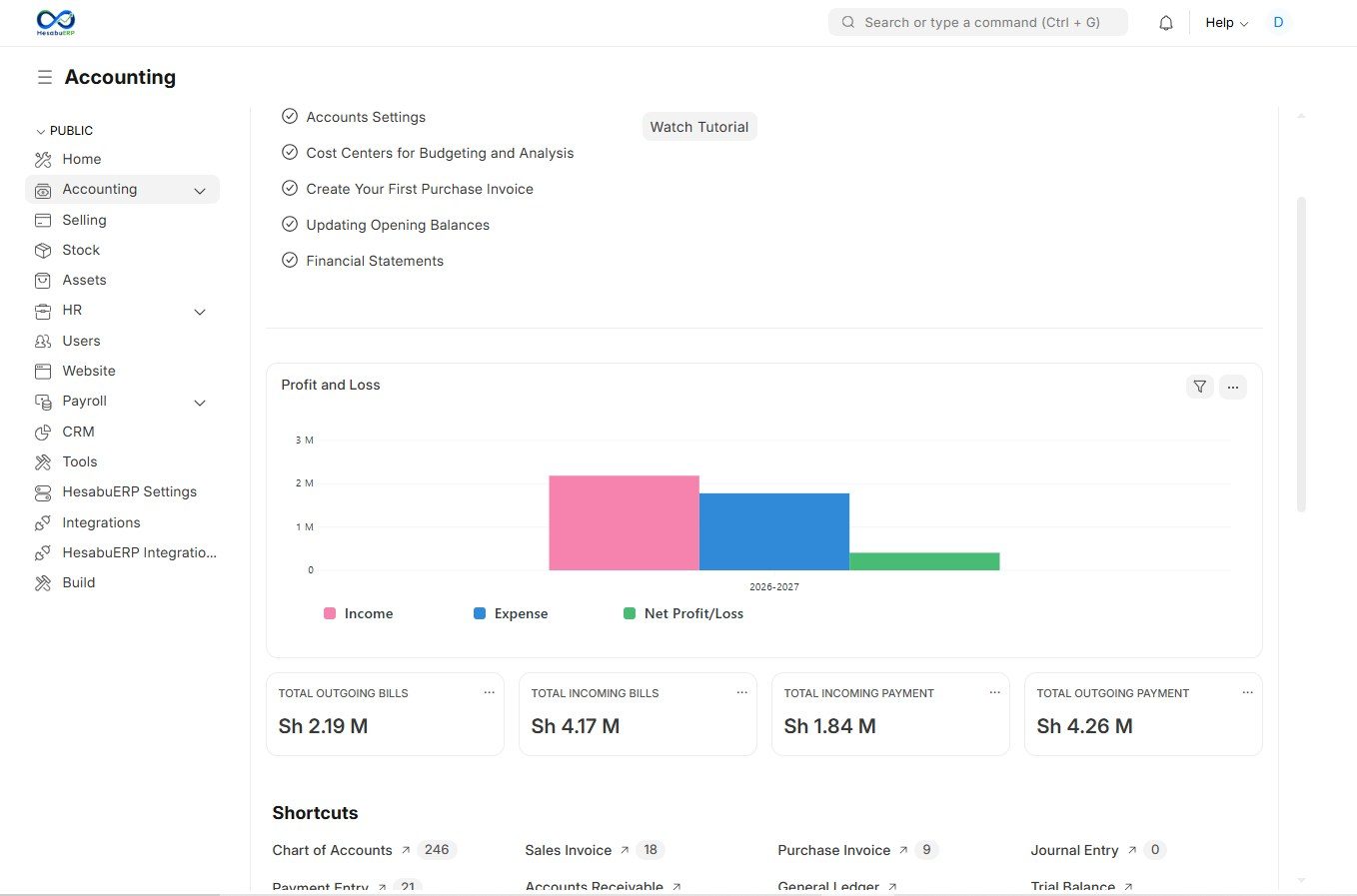
The parts of the screen
- Top bar. The Hesabu ERP logo, the breadcrumb showing where you are, the search bar (press Ctrl + G), notifications, Help and your profile picture.
- Sidebar. On the left, a list of modules such as Home, Accounting, Selling, Stock, Assets, HR, Payroll, CRM and Tools. Click one to open its workspace. Which modules you see depends on your plan and your roles.
- Workspace. A module's home screen with charts, number cards (such as total incoming payments) and shortcuts to the records and reports you use most.
- List view. A table of records of one type, for example every Sales Invoice, with filters on top.
- Form view. A single record opened for reading or editing.
Practical example
To find out what customers owe you, click Accounting in the sidebar, then Accounts Receivable under Shortcuts. The report opens. To see one customer's invoices instead, open Selling, then Sales Invoice, and filter by customer.
Important notes
- The breadcrumb at the top is clickable. Use it to go back to the list or the workspace.
- Use the search bar rather than hunting through menus. See Using the global search.
Common mistakes
- Looking for a module that is not in your plan. If a module you expect is missing, see Missing modules or permissions.
Next steps
Continue with Navigation and shortcuts.