
Signing in to your workspace
How to open your workspace, sign in, and recover a forgotten password.
Overview
Your Hesabu ERP workspace has its own web address. You sign in there with the email and password you set when you signed up, or the ones your administrator gave you.
Prerequisites
- Your workspace address, for example
yourcompany.hesabuerp.co.ke. - Your email address and password.
- A modern browser (Chrome, Edge, Firefox or Safari) on a computer, tablet or phone.
Steps
- Open your browser and type your workspace address in the address bar, then press Enter. The sign-in page appears.
- Enter your email address and password.
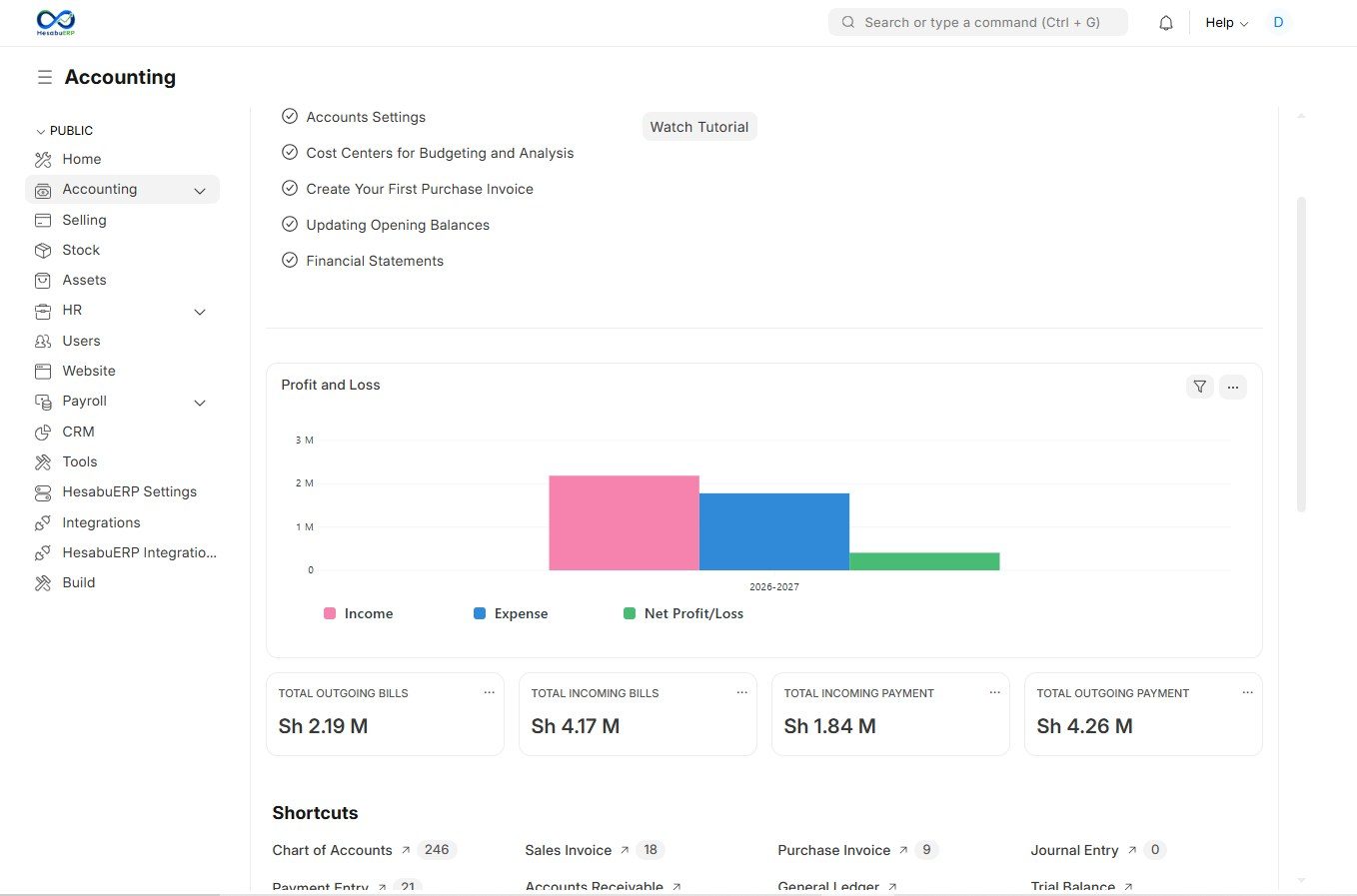
- Click Login. You land on your Home screen, with the modules your roles allow in the sidebar on the left.
If you forget your password
- On the sign-in page, click Forgot Password?.
- Enter your email address and click Reset Password.
- Open the email we send you and click the link in it.
- Choose a new password and save it, then sign in as normal.
Practical example
Wanjiru, the accountant, bookmarks mwangaza.hesabuerp.co.ke on her laptop and phone. She signs in each morning with her own email and password, never her manager's.
Important notes
- Bookmark your workspace address so you do not have to type it.
- Never share your password. Ask your administrator to create a user for each person. See Creating users and roles.
- Sign out on shared computers: click your profile picture at the top right, then Logout.
Common mistakes
- Using the main website address instead of your own workspace address.
- Typing the email with a different spelling from the one on your user record.
Troubleshooting
If the reset email does not arrive, check your spam folder and ask your administrator to confirm your email address. See Login problems.
Next steps
Continue with The dashboard and workspaces.