
Running payroll and payslips
Create the month's salary slips, review them, submit and pay.
Plan availability
Included in the Enterprise plan. Contact us if you want to upgrade.
Overview
Each month you run a Payroll Entry. It creates a Salary Slip for every employee, using their salary structure, attendance and leave.
Prerequisites
Employees with submitted salary structure assignments, submitted attendance and approved leave for the month.
Steps
Run the payroll
- Search for Payroll Entry and click Add Payroll Entry.
- Choose the Company, Payroll Frequency (Monthly), and the Start Date and End Date.
- Optionally filter by Branch, Designation or Department. Tick Validate Attendance if you want attendance checked, and choose the Payment Account and Cost Center.
- Click Get Employees to list who will be paid.
- Click Save, then Create Salary Slips.
Review the slips
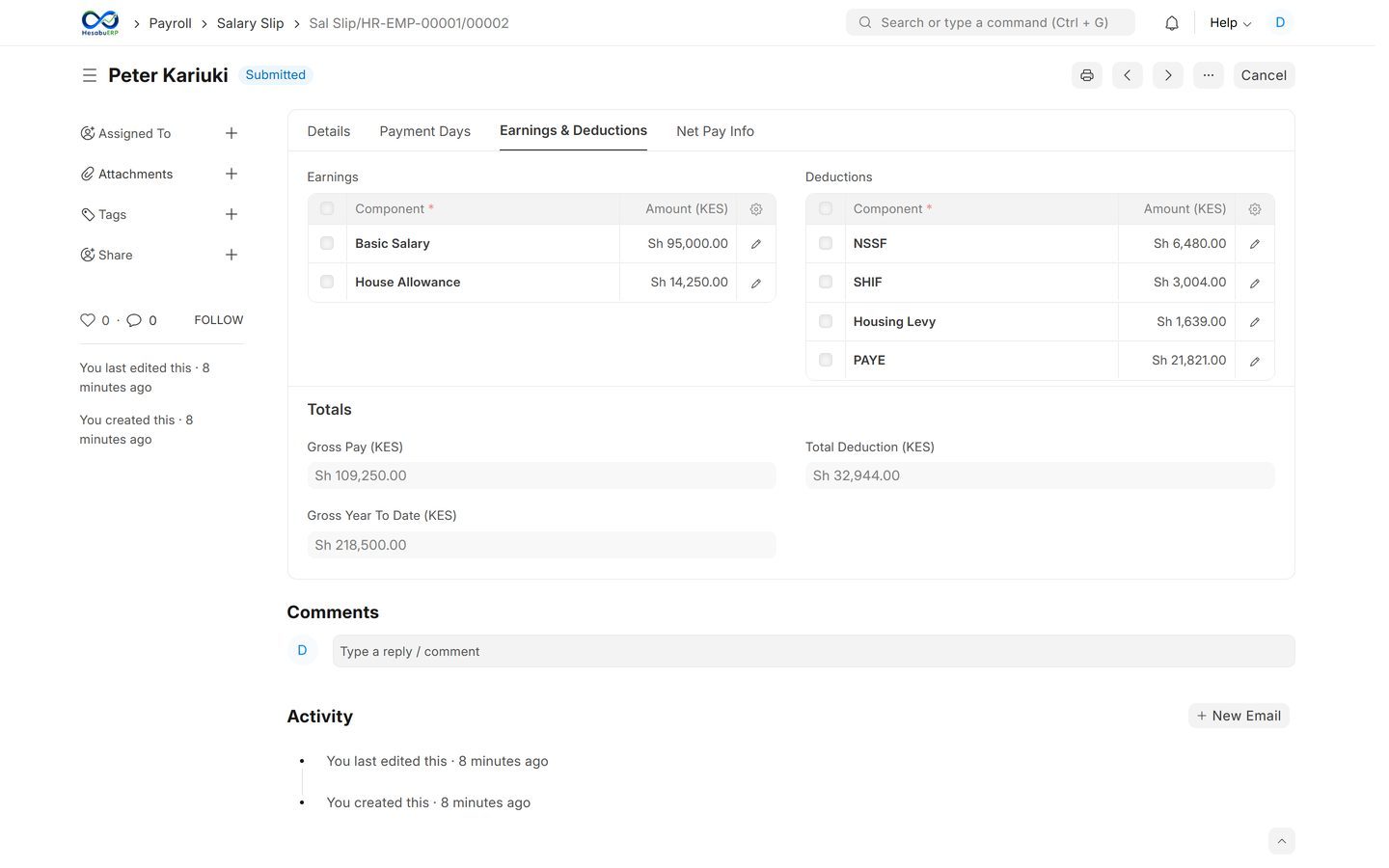
- Open Salary Slip and check several, especially anyone with unpaid leave, a new joiner or a leaver.
- Check the Payment Days, earnings, deductions and Net Pay.
- Correct problems in the source data, such as attendance, then recreate.
Submit and pay
- In the Payroll Entry, click Submit Salary Slip.
- Click Make Bank Entry to record the payment of net salaries from the bank account.
- Pay staff by bank transfer or M-Pesa bulk payment, using the amounts shown.
Payslips for employees
Open a slip and print or email the PDF, which uses your print format. See Print formats and letterheads.
Practical example
On the 25th, HR runs payroll for November. After checking three sample slips against the worked example, they submit, make the bank entry, and email the payslips.
Important notes
- Do not edit a submitted slip. Cancel it, fix the cause and recreate.
- The statutory amounts payable appear on your balance sheet until you pay them. Record those payments with a journal or payment entry.
Common mistakes
- Running payroll before attendance is submitted.
- Paying staff before checking the totals.
Troubleshooting
An employee has no slip: they have no salary structure assignment for that period, or are not Active.
Next steps
Read Expense claims.